Fixes for Aha Software: Failing To Recognize the Device
"Oh no! My Aha isn’t being recognized by my computer!" But don’t panic, we got you covered.
This common issue often stems from 6 possible situations. And below, we’ll walk you through 6 actionable fixes to get your Aha Halo back on track.
Solution 1: Try Out Different Cables
- Try to use the original USB cable: Many third-party cables are designed for charging purposes only, but if the original one fails, then test alternate cables.
- Rule Out USB port Problem: Swap ports to rule out hardware faults, and make sure to push the connector in firmly.
- Disable Bluetooth: Turn it off temporarily to avoid potential interference.
Solution 2: Restart Your Device
Follow the below steps to reset:
1. Turn off Aha Halo and connect it to your computer using a USB cable.
2. Press the right button to turn it on.
3. Open the Aha Halo software on your computer.
Solution 3: Check Device Manager
Scenario A: Driver Installation Failure
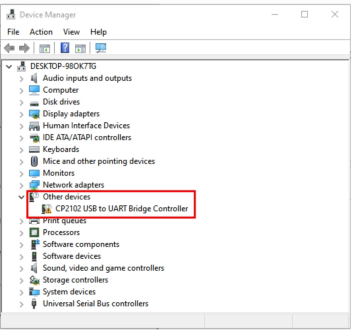
Type in "Device Manager" in the bottom serch bar on your computer screen and open it. Find "Other Devices", and if this icon shows up, then it means driver installation failed.
Fix:
Download the newest drive and run.(Usually the first option would work), and follow the step-by-step instruction for CP2102 installation.
Scenario B: Computer Automatically Assigned A Port
The computer will automatically allocate an output when Aha’s connected to the computer. For example, COM4. And the default output may not be recognized by Aha, which you can manually select a different output. Click here for step-by-step support.
Solution 4: Mac Users: Update Your OS
Outdated macOS versions can block device recognition. (Has to be Above OS 14.10)
1. Click System Settings → General → Software Update
2. Install pending updates.
3. Reconnect the Aha Halo.
Solution 5: Test on Another Computer
Download Aha Halo software on another computer and try to connect. If it works elsewhere, your primary computer likely has
- Corrupted drivers
- Conflicting software
- Hardware limitations
Solution 6: Last Resort: Contact Aha Support
If all else fail, please email support@ahaharmony.com with screenshots of device manager errors and log files (located in the application's installation folder or a dedicated logs directory) and describe the steps you’ve tried.
Bei mir haben alle Tips nicht geholfen, mein Halo Gerät wurde nicht erkannt. Dann fand ich die Lösung: ich habe das USB Hub von Spooky von meinem PC abgezogen, dann das Kabel mit dem Halo Gerät direkt in den PC gesteckt und neu gestartet. Jetzt wird das Gerät erkannt.
Könnten Sie uns bitte ein Bild schicken, das zeigt, dass das Halo-Gerät nicht erkannt wird? Dann kann sich unser Kundenservice mit Ihnen in Verbindung setzen, um das Problem zu lösen. Vielen Dank!
Hi, just wonderful. Thank you so much.
Just turned off the bluetooth on my computer as suggested and it worked immediately. My device is recognized and I can load and delete programs! I had been trying everything for days! (lucky enough, it worked on another computer…. and guess what, I never turn the bluetooth on that one!)
Thanks a million. Have a brilliant day.
Hi, just wonderful. Thank you so much.
Just turned off the bluetooth on my computer as suggested and it worked immediately. My device is recognized and I can load and delete programs! I had been trying everything for days! (lucky enough, it worked on another computer…. and guess what, I never turn the bluetooth on that one!)
Thanks a million. Have a brilliant day.
Hi, just wonderful. Thank you so much.
Just turned off the bluetooth on my computer as suggested and it worked immediately. My device is now recognized and I can load and delete programs! I had been trying everything for days! (lucky enough, it worked on another computer…. and guess what, I never turn the bluetooth on that one!)
Thanks a million. Have a brilliant day.