Keep your Aha Halo performing at its best. Follow this easy step-by-step guide to check for and inistall the latest firmware using the Aha Halo software.
Before you begin:
Before updating your Aha Halo firmware, please make sure your Aha Halo software has been updated to the latest version: Version 480 (Download Here)
Use the original USB cable when possible.
Connect your Aha Halo to your computer.
Power on your Aha Halo before launching the software.
Do not disconnect the USB cable during the Upgrade.
Step by Step Guide
Step 1: Connect and Power On Your Aha Halo
Connect your Aha Halo to your computer using the USB cable, then power on your Aha Halo.
Step 2: Launch the Aha Halo Software
Open the Aha Halo software on your computer.
Step 3: Check for New Firmware
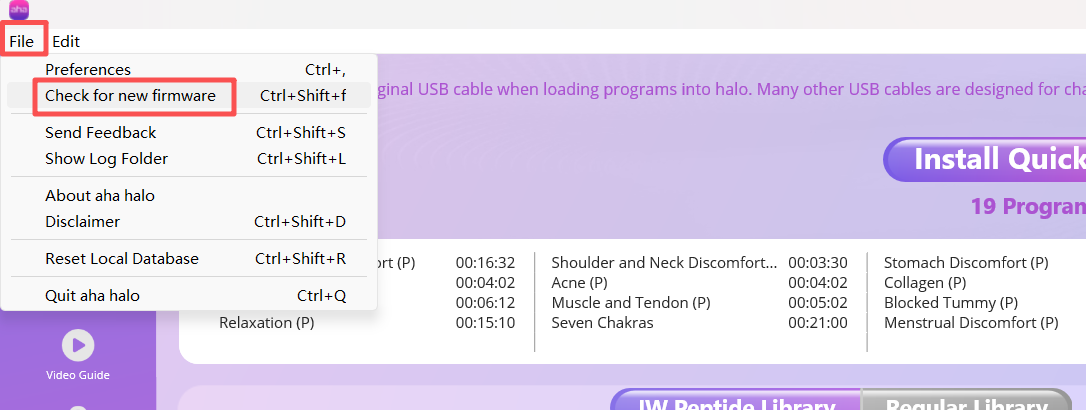
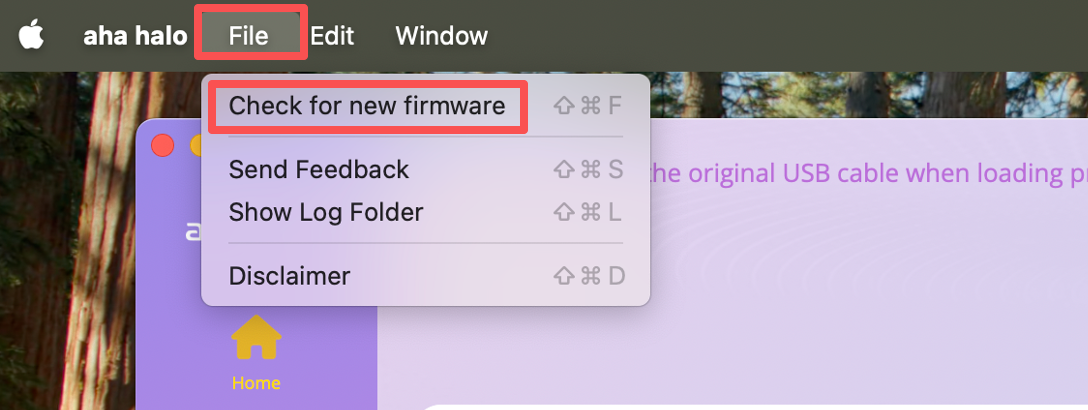
From the top menu, go to File and select “Check for New Firmware.”
For Windows
For Mac
Step 4: Install the Firmware Update
When the “New Halo Firmware Available” window appears, click “Install.”
Step 5: Restart Your Halo
Once your Halo displays “Firmware Update OK,” press the right button on your Halo to restart the device.
Important Notes
If your Aha Halo is not recognized, close and reopen the software, then reconnect your device.
Do not disconnect the USB cable or touch the device during the update process. An interrupted update can freeze the system or stop the device from powering on.
Having Trouble Updating Your Firmware?
If your Aha Halo gets stuck, shows a black screen, or the firmware update does not finish, use the video guide below to put your halo back into Firmware Update mode and complete the installation. Choose the video that matches your order date: before or after July 25, 2025.
Firmware Recovery Guide
Orders Placed Before July 25, 2025
Firmware Recovery Guide
Orders Placed After July 25, 2025
To provide the best experiences, we use technologies like cookies to store and/or access device information. Consenting to these technologies will allow us to process data such as browsing behavior or unique IDs on this site. Not consenting or withdrawing consent, may adversely affect certain features and functions.
Functional
Always active
The technical storage or access is strictly necessary for the legitimate purpose of enabling the use of a specific service explicitly requested by the subscriber or user, or for the sole purpose of carrying out the transmission of a communication over an electronic communications network.
Preferences
The technical storage or access is necessary for the legitimate purpose of storing preferences that are not requested by the subscriber or user.
Statistics
The technical storage or access that is used exclusively for statistical purposes.The technical storage or access that is used exclusively for anonymous statistical purposes. Without a subpoena, voluntary compliance on the part of your Internet Service Provider, or additional records from a third party, information stored or retrieved for this purpose alone cannot usually be used to identify you.
Marketing
The technical storage or access is required to create user profiles to send advertising, or to track the user on a website or across several websites for similar marketing purposes.